How can we help?
How do I set up two-factor authentication?
Last updated on October 16, 2026How do I set up two-factor authentication?
Two-factor authentication (2FA) adds an extra layer of security to your Omise dashboard account, protecting it against unauthorized access and activity if your password leaks. Once you enable 2FA, you'll need both your password and a 6-digit code from an authenticator app on your mobile device to sign in.
Dashboard actions that require 2FA
Required: Every dashboard user, regardless of role, must set up 2FA before performing any of the following actions.
- Add and manage recipients
- Add and manage transfers and transfer schedules
- Roll your secret key
- Invite and manage team members
Set up 2FA on the Omise dashboard
Download and install an authenticator app on your mobile device. Omise recommends Google Authenticator, which is free and can back up your authentication connections to your Google Account.
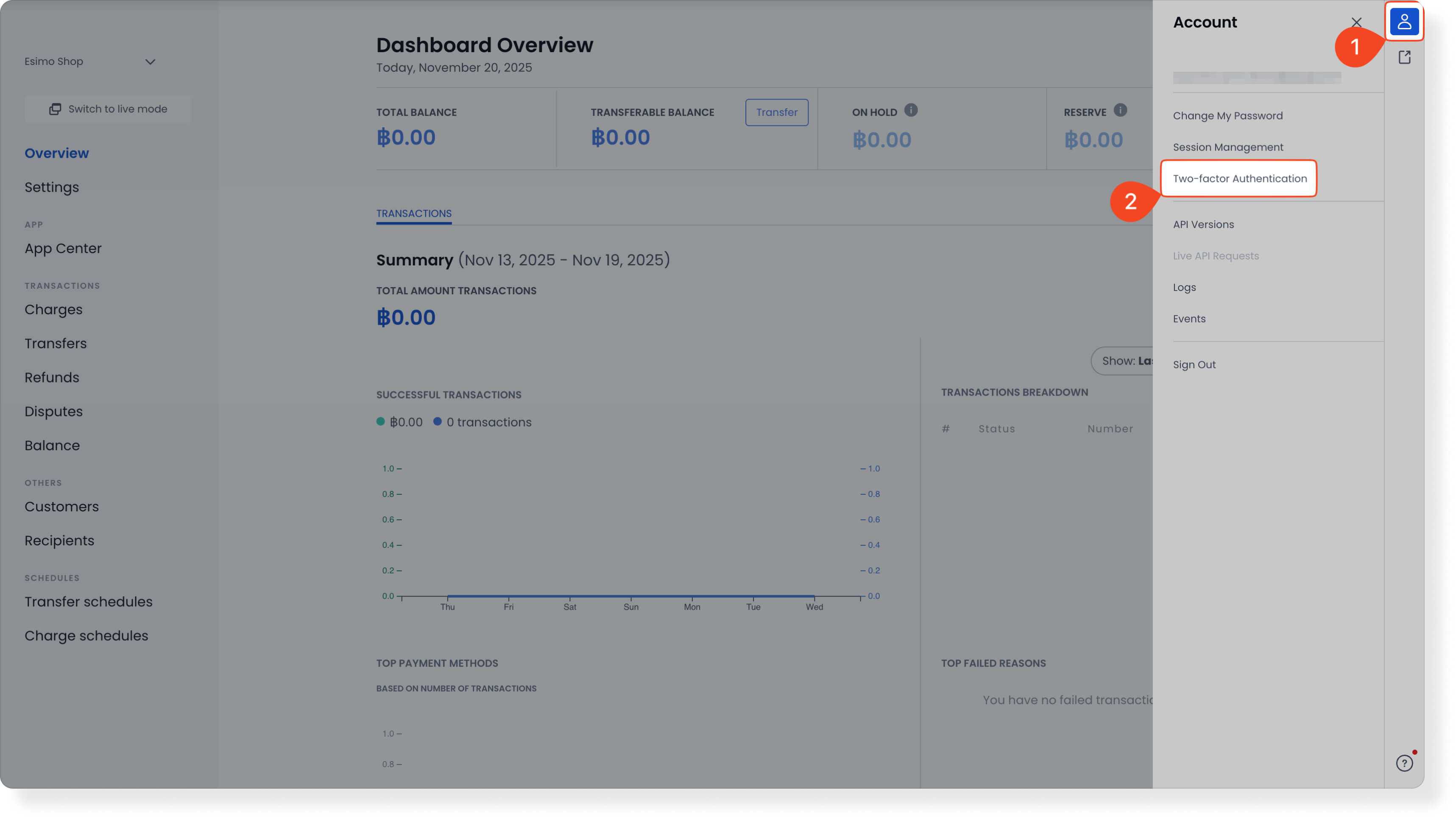
On the Omise dashboard, click Person on the right side, then select Two-Factor Authentication. You can also go directly to the Two-Factor Authentication settings page.
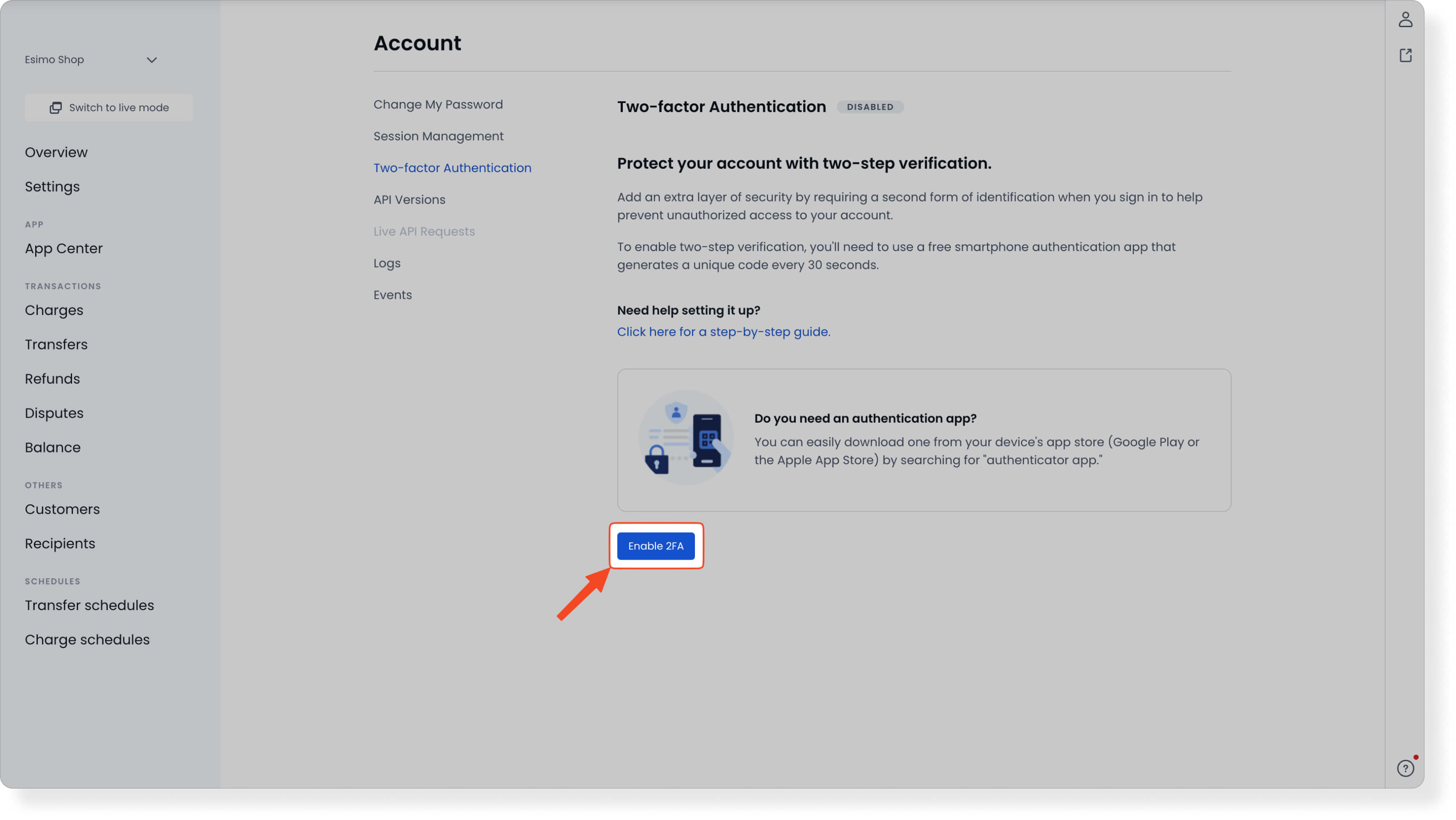
Click Enable 2FA.
Open the email with the subject [Omise] 2FA Setup Confirmation and click the confirmation link.

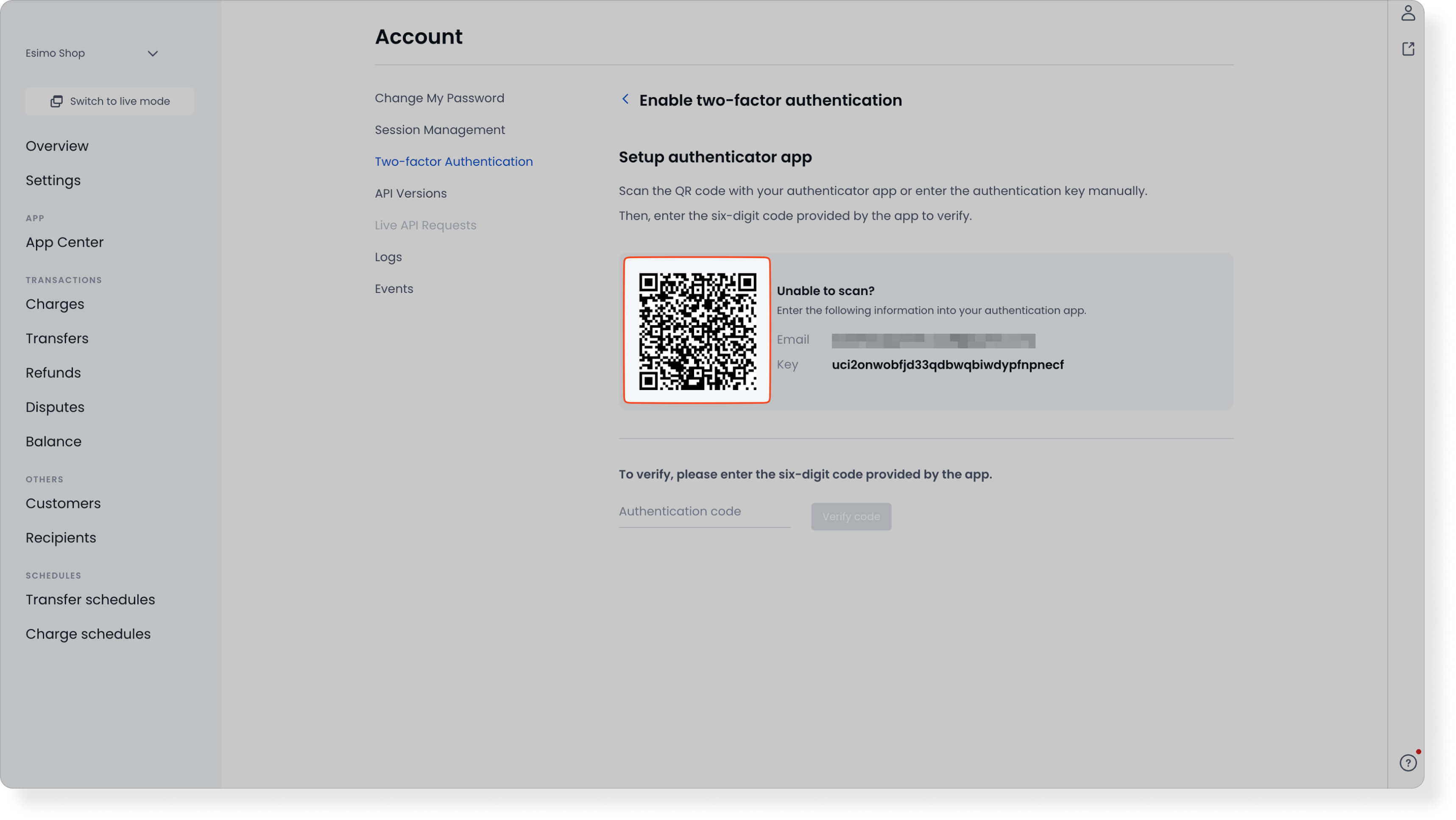
Scan the QR code with your authenticator app. If you can’t scan it, enter the email address and key manually in the app.
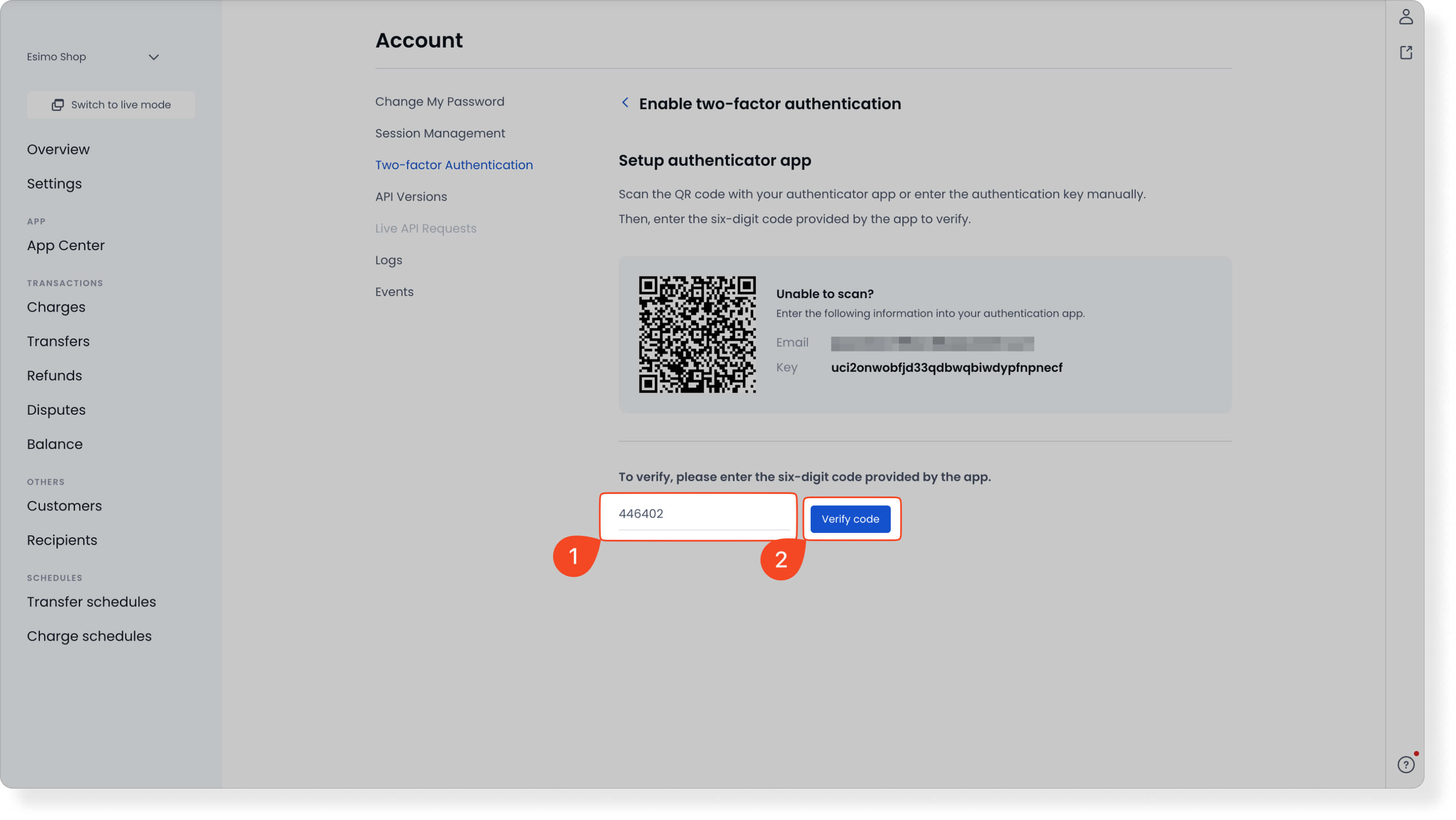
Your authenticator app displays a 6-digit code. Enter the code in the Authentication code field, then click Verify code to complete setup.
The page refreshes automatically and issues 10 Recovery Codes. Click Download and store the file somewhere safe.
Important: Recovery codes let you sign in if you can't get a 6-digit code from your authenticator app — for example, if you lose your mobile device. Each recovery code works only once. If you run out, click Generate new codes to get a new set.

Sign in to the Omise dashboard with 2FA
- Enter your email address and password, then select I have activated 2FA.
Enter the current 6-digit code from your authenticator app in Authentication code, then sign in.
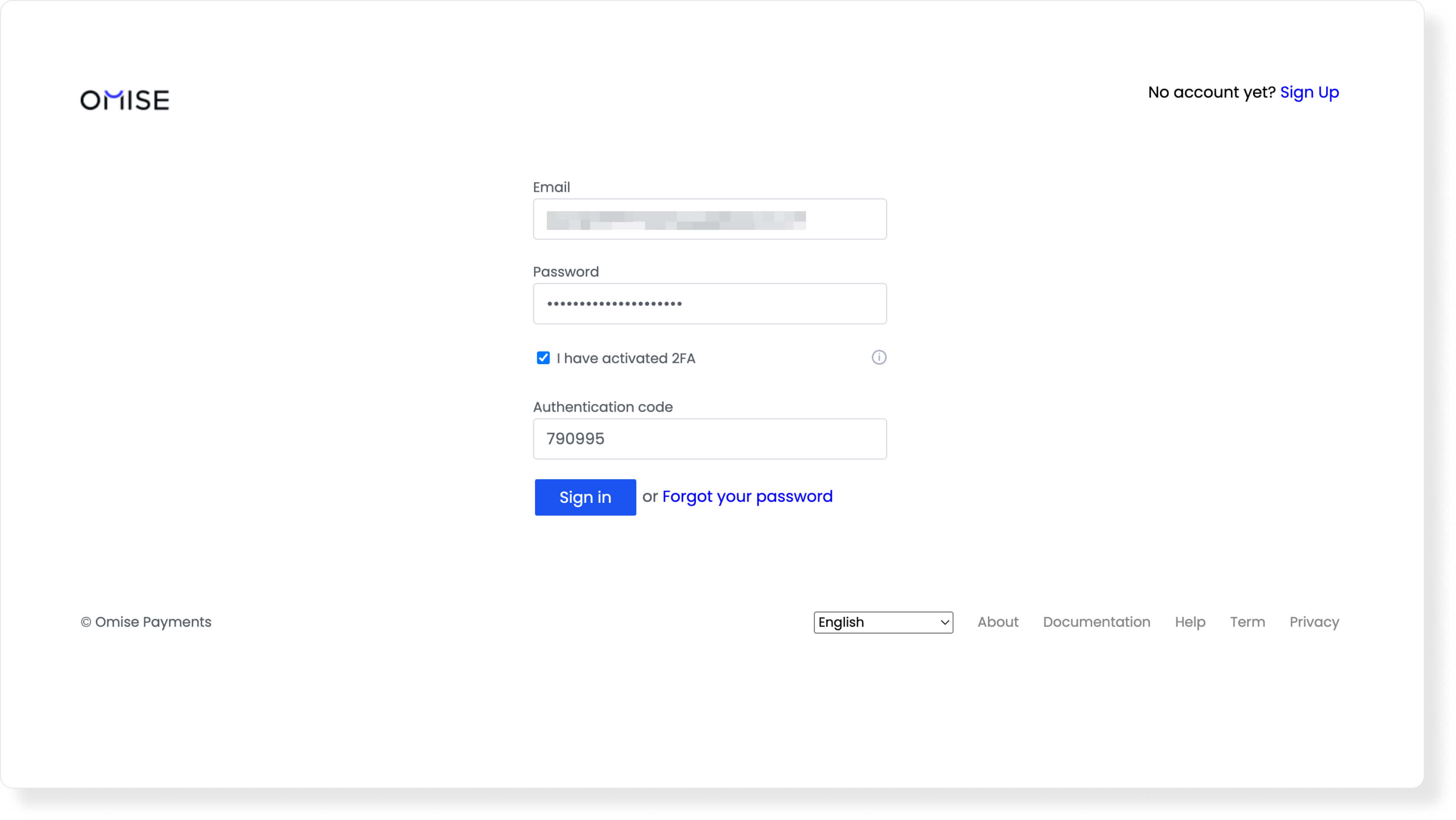
Keep 2FA working on your Omise account
- Keep the Omise connection in your authenticator app for as long as 2FA is enabled. If you delete the connection or uninstall the app, you can only sign in with a recovery code, and each recovery code works once. Without a recovery code, contact Omise support to regain access.
- Each 6-digit code lasts 30 seconds before the app generates a new one. Enter the current code before it expires.
- If several people use your account, invite each one as a team member instead of sharing a single login. For instructions, see How to manage user access to the dashboard?
FAQ
Do I have to set up 2FA? Yes, if you need to manage recipients, transfers, or transfer schedules, roll your secret key, or invite and manage team members — the dashboard blocks those actions until 2FA is active. For everything else, 2FA is optional, but Omise strongly recommends it for every user with dashboard access.
Which authenticator app should I use? Any authenticator app that scans a QR code and generates 6-digit codes works. Omise recommends Google Authenticator because it's free and can back up your connections to your Google Account.
Why can't I sign in after setting up 2FA? Make sure you selected I have activated 2FA and entered the code currently showing in your authenticator app. After five failed attempts, the dashboard blocks sign-in for a short period. See Why can't I log in after setting up two-factor authentication?
What if I lose the device I used to set up 2FA? Sign in with one of your recovery codes, then set up 2FA again on your new device. If you don't have a recovery code, email support@omise.co from the email address registered to your Omise account, with the supporting documents listed in What to do if I lost the device I used to set up two-factor authentication?
What happens when I use up my recovery codes? Click Generate new codes on the Two-Factor Authentication settings page to get a new set, and download it right away.
Can I disable 2FA? Yes, although Omise strongly recommends keeping it enabled. To disable 2FA, you'll need your password and either a 6-digit code or a recovery code. Afterward, delete the Omise connection from your authenticator app. See What should I do if I want to disable two-factor authentication?
Can my team share one login with 2FA? No. Invite each person as a team member, so everyone has their own login and 2FA connection. See How to manage user access to the dashboard?
Related Content
- Why can't I log in after setting up two-factor authentication? — Fix common sign-in problems after enabling 2FA
- What to do if I lost the device I used to set up two-factor authentication? — Recover access with or without a recovery code
- What should I do if I want to disable two-factor authentication? — Turn off 2FA for your account
- How to manage user access to the dashboard? — Invite team members and assign roles
Can’t find your answer?
Get in touch with us and we’ll get back to you as soon as possible
