How can we help?
What should I do if I want to disable two-factor authentication?
Last updated on December 15, 2025Two-factor authentication (2FA) adds an extra layer of security to your account, protecting it against unauthorized access and activities in case of password leaks. For the security of your account, we strongly recommend against disabling the 2FA functionality.
If you must disable 2FA, follow the steps below:
Steps to disable 2FA
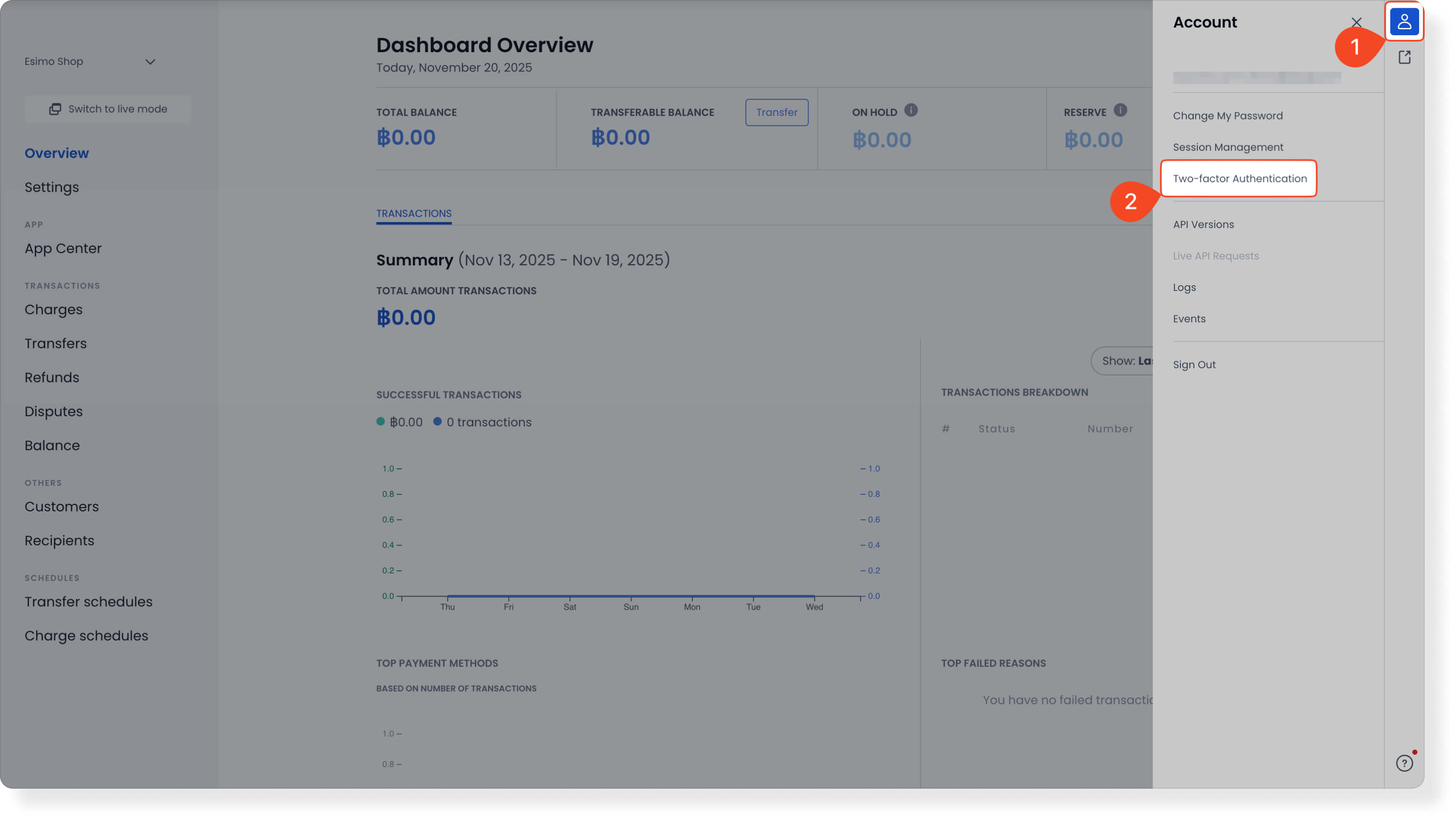
On the Omise dashboard, click the ”Person” icon on the right side, then select ”Two-Factor Authentication”. You can also click on this link to access the settings page directly.
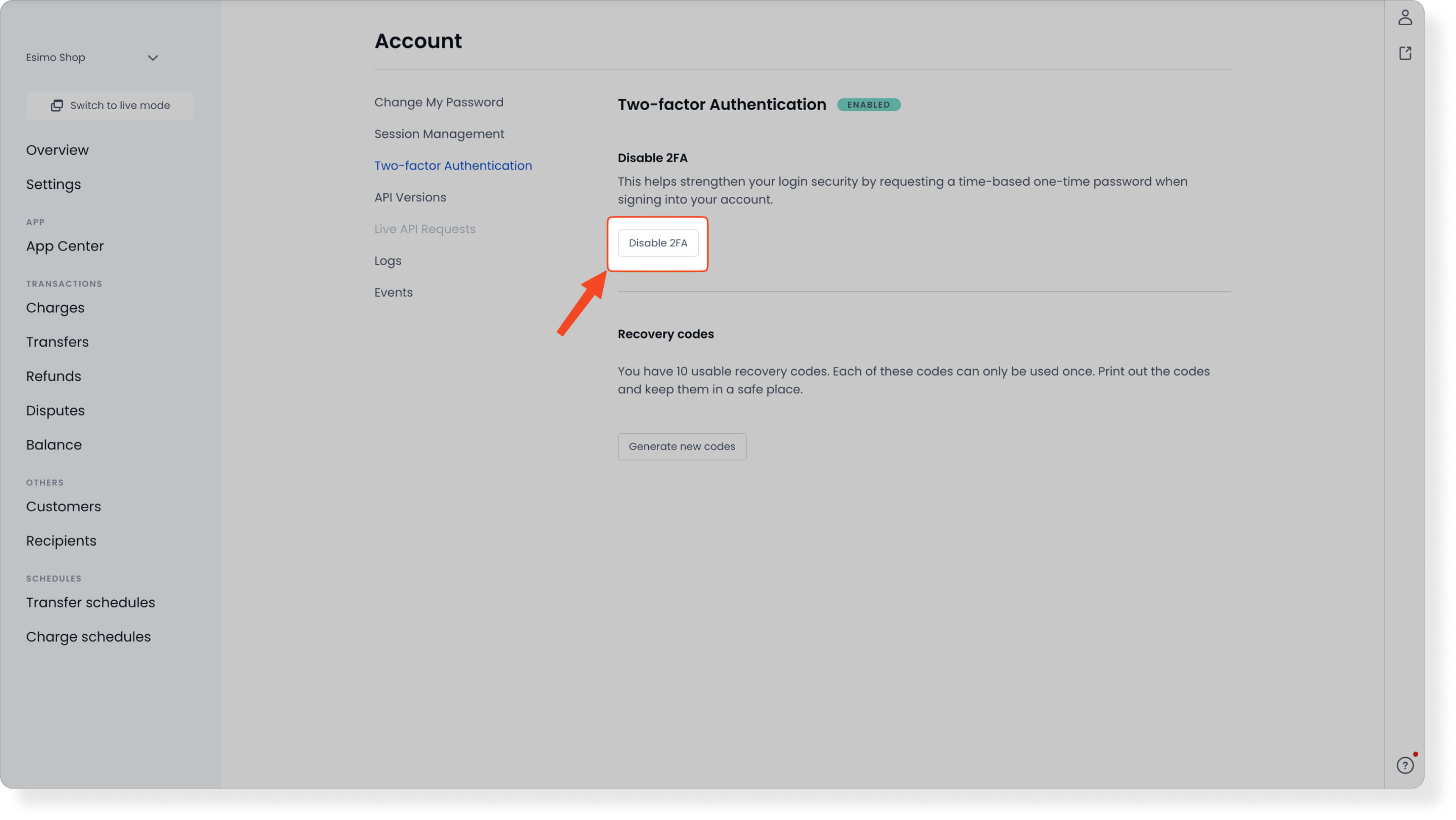
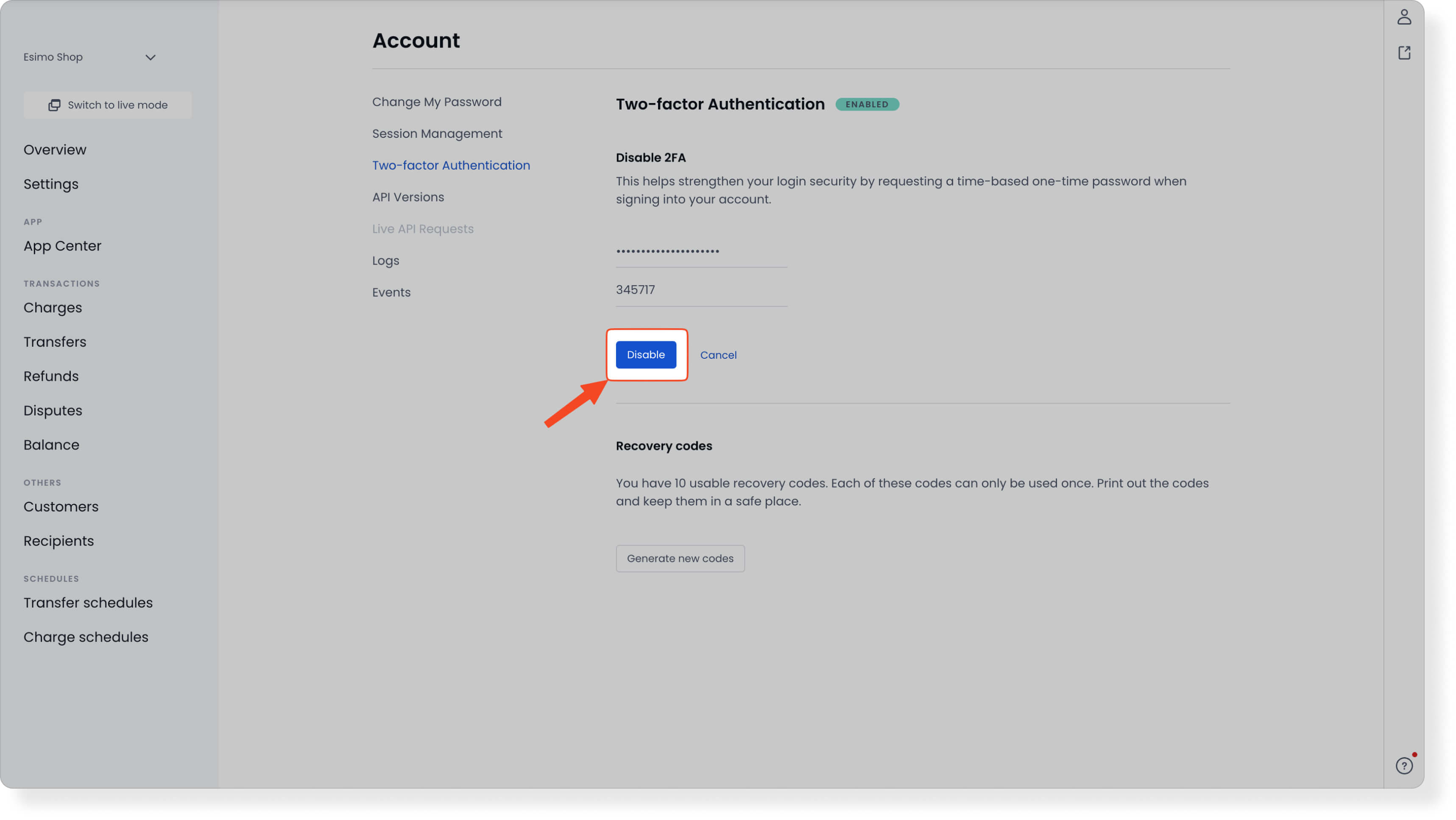
Click the Disable 2FA button.
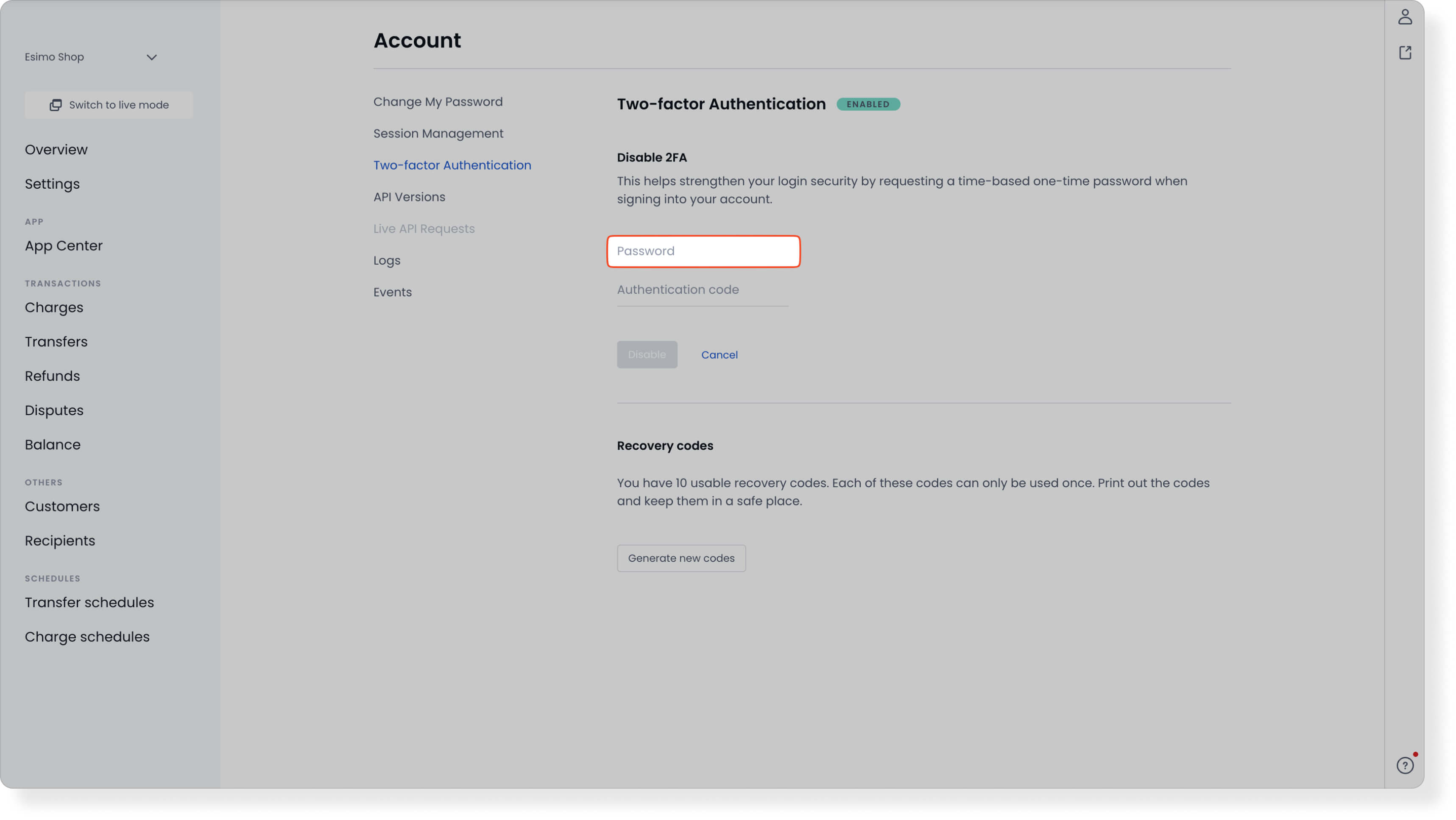
Enter the password into the Password field.
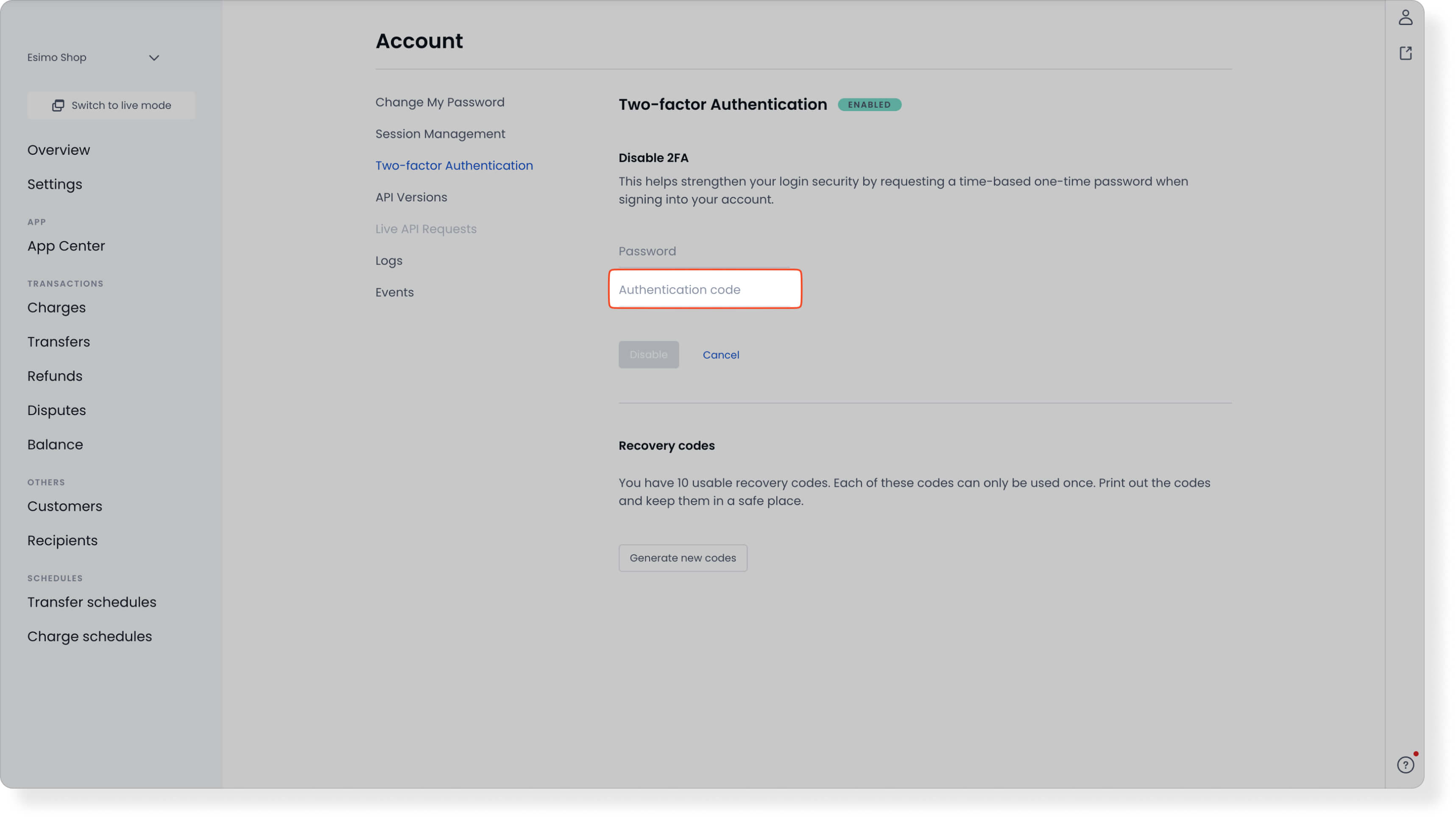
Enter the 6-digit code from your authenticator app, or one of the recovery codes, into the Authentication code field.
If you cannot access the 6-digit codes and do not have any recovery codes downloaded, please refer to the “What to do if I lost the device I used to set up two-factor authentication?” article or contact our customer support team at support@omise.co for assistance.
Click the Disable button to complete the process.
Once 2FA is successfully disabled, you can log in to your Omise dashboard using only your email and password.
You are free to set up 2FA again later using a different authenticator app or mobile device, if desired.
Crucial: Please ensure that you delete the Omise connection within your authenticator app to prevent future confusion or error.
Can’t find your answer?
Get in touch with us and we’ll get back to you as soon as possible
